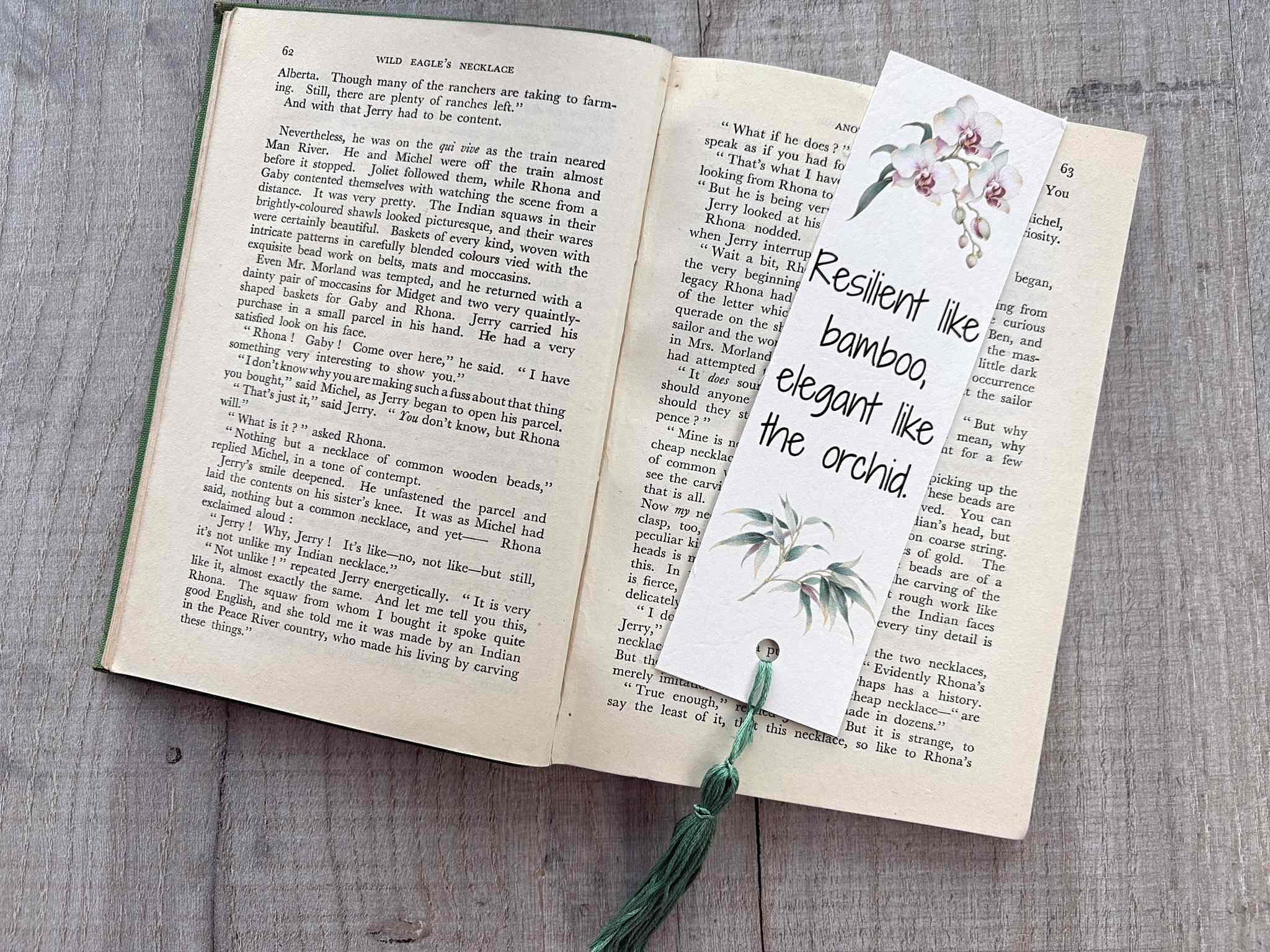
DIY Botanical Bookmarks: Step-by-Step Canva Tutorial with Orchid & Bamboo Art
As an Amazon Associate I earn from qualifying purchases
There is something so special about opening a well-loved book and finding a gorgeous, handmade placeholder waiting inside. Whether you are gifting a thoughtful token to a fellow reader or treating your own reading nook to an upgrade, crafting your own bookmarks is a wonderful, quick project.
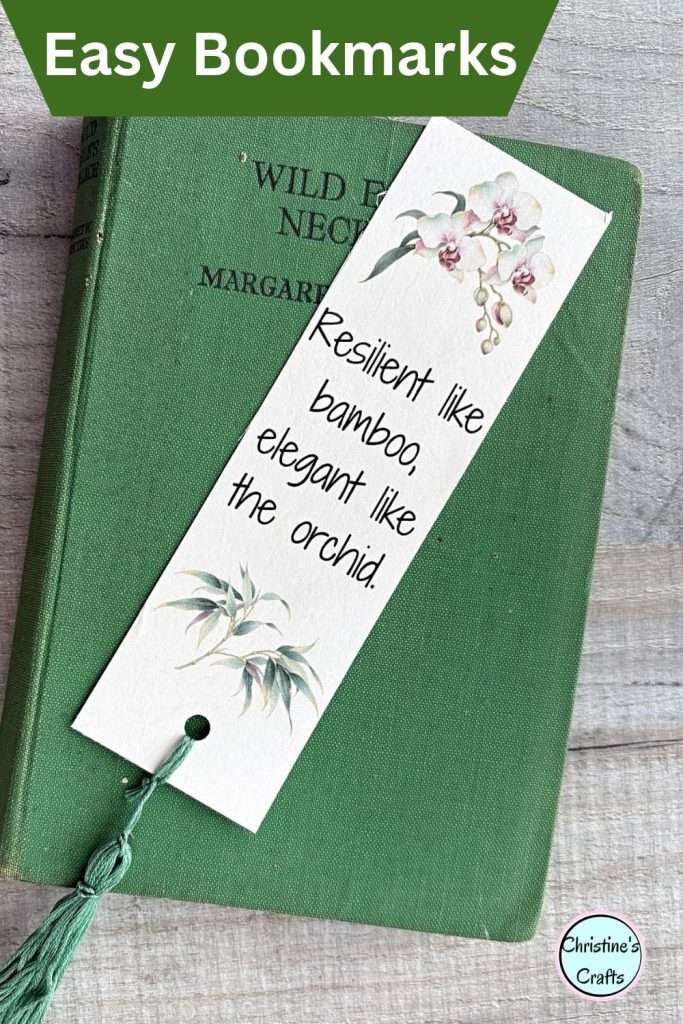
In this step-by-step tutorial, we’re going to design elegant, nature-inspired bookmarks featuring stunning orchid and bamboo artwork. Using PNG images with transparent backgrounds makes layering and styling effortless in Canva. I’ll walk you through how to arrange these gifted, recommended graphics into a polished design that you can print, laminate (optional), and cherish for years to come!
Don’t worry if you have never used Canva – it is easy to use and free!
This page contains affiliate links meaning I earn a little commission if you use those links at no cost to you. I only recommend brands I use and trust.
You will need:
- Canva account (free to set up)
- Botanical Images
- Card to print out bookmarks
- Laminator (optional)
If you would like to use the gorgeous images that I am using they are available from The Shanhai Bestiary.
Creating your Botanical Bookmarks in Canva
I am making my bookmarks in a free version of Canva. If you have a paid version there are many more options available but you do not need them. If you need to, go and open a Canva account and then come back here and follow along.
Create a Letter size or A4 size portrait document. Choose your size depending on where you live in the world. I am in the UK so I use A4.
Set Up Your Bookmark Shape
When you select something in Canva you use the left hand menu. To start your bookmarks select ‘Elements’ in the menu. In the box at the top write what shape you would like – I used square. Click on the shape that you see that you like. It will now appear on your page.
If you are using a square you will be able to turn it into a rectangle by using the lines on the edges of the shape. Simply drag them to the size you would like. Alternatively, click on the shape and then click on the 3 dots in the menu above. Select ‘Position’ and type in the size you would like.
To change the colour of your shape simply click on the coloured circle in the menu above. On the left hand side you will then see lots of colours to choose from and a circle with a + in it which gives you even more options. Select the colour you would like.
You can also change how think the line is around your shape. Click on the 3 little lines next to the coloured circle. Then select the style of line you want and change the stroke wight to what you want. I used stroke weight 1.
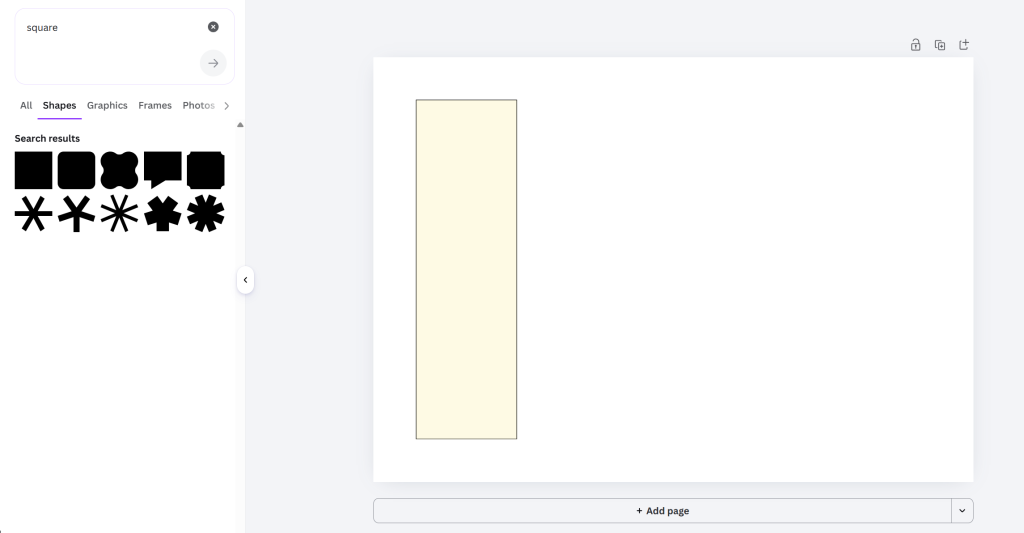
Once you are happy with your bookmark shape right click on the shape and select ‘Duplicate’. Or in the small menu above the shape click the + button.
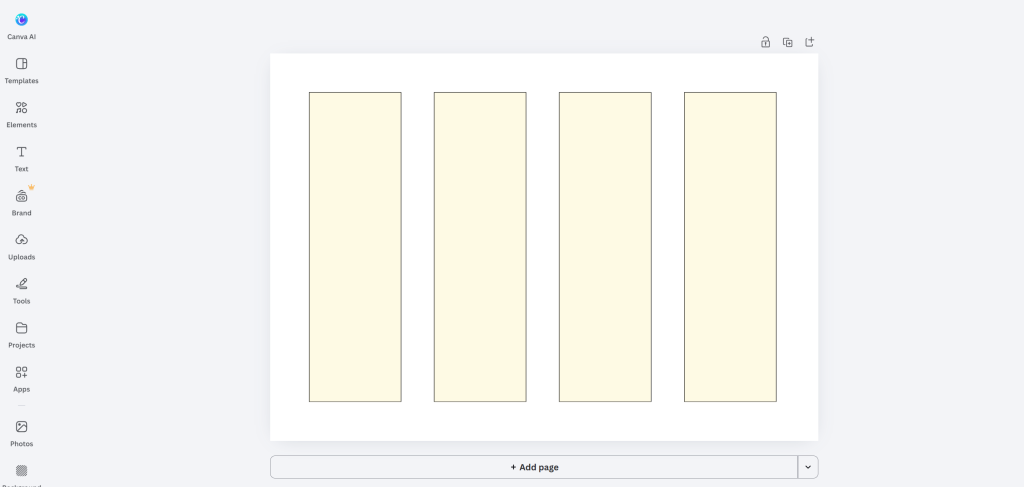
You now have your basic bookmarks and you can start the fun part!
Designing your Bookmark
If you would like text on your bookmark simply select ‘Text’ in the left hand menu and then click on ‘Add a subheading’. Write whatever you want there and then change the font and the text size in the menu above. I used ‘Higuen Elegant Serif’, size 28 and ‘Shadows into Light Two’ in different sizes.
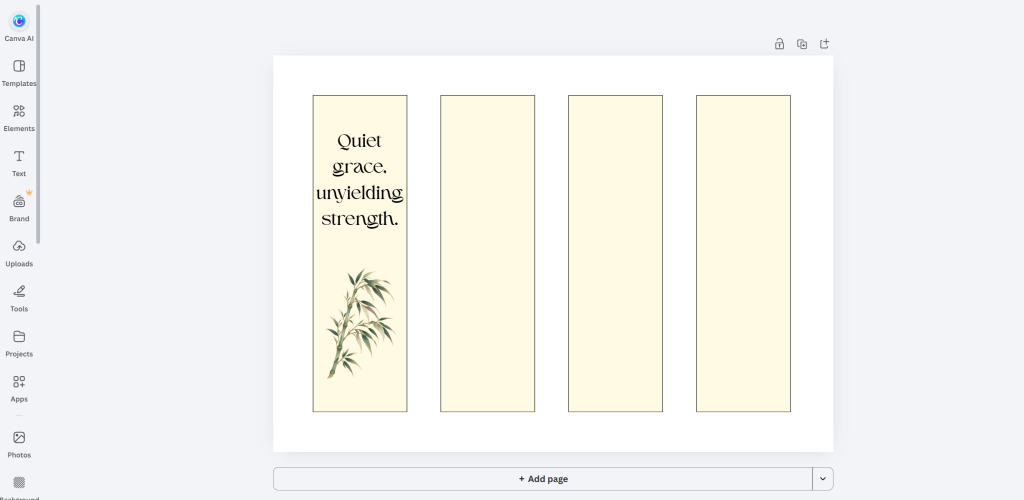
You can then add in images very easily. If you have your own images like these gorgeous ones then click on ‘Uploads’ in the left hand menu and then ‘Upload files’. Add any image that you want to use. NOTE: Images with a transparent background work best.
Remember, if you would like to use the gorgeous images that I am using they are available from The Shanhai Bestiary.
If you want to use the free images in Canva, type what you would like in the box at the top of the left hand menu. You will then see items to select. Click through to a section eg, Graphics and choose your images.
Once, you have your image you can click on it and it will appear on your design or you can drag it across. Then you can re-size and rotate it using the box around the shape and the rotation symbol below it.
There are lots of ways to use Canva and I am only introducing you to it here. Feel free to play around as much as you like.
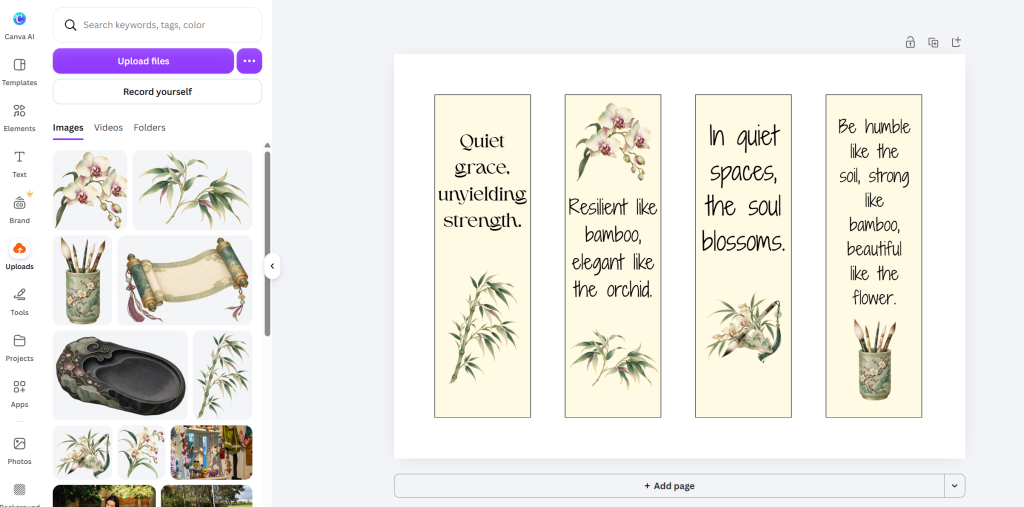
If you would like to add circles to punch out to add tassels simply write circles in the top box in the left hand menu. Add a circle to your design, make it small and move it to the centre of your bookmark where you want it. Lines will appear to help you line it up.
Create as many bookmarks as you want. If you want to duplicate a page click the + button at the top of the page. If you want a new blank page select the small + to the right hand side of the top of your current page.
Download your Bookmarks
Once you are happy with your designs, it is time to download them. Select ‘Share’ at the top right hand side of the screen. Then select Download. You can choose your document type and I recommend pdf as it is great for printing.
Then select Download and you will have the file downloaded to your computer just like any other files.
Print off and enjoy your Botanical Bookmarks
When you print off your bookmarks consider what you are going to do with them next. If you are going to laminate them you can probably print them onto paper. If you are going to keep them as they are then I recommend a good quality card.
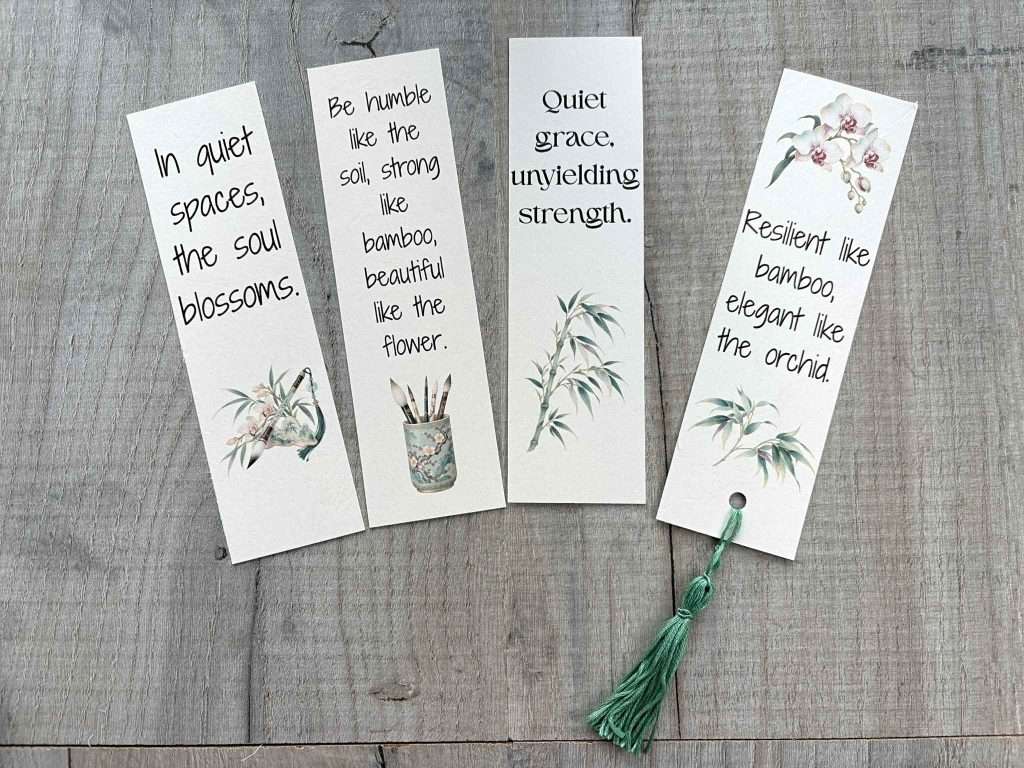
Whatever you print them onto, set your print quality as high and they should look stunning. Then, all you have to do is cut them out and use them.
If you would like to add a tassel to your bookmarks then you can buy them or learn how to make your own tassels here.
What next?
I hope that you have enjoyed making your own botanical bookmarks. If you are a book lover (or know one) I can suggest some other great projects for you.
How about a cute book lovers cushion cover complete with book pocket?
Or, perhaps make some cute miniature notebooks using one piece of copier paper? These are great for adding to other gifts for friends.
Take a look around this website for more ideas or use the Search function at the top. Simply type ‘book’ and see what you find.
You can also save this to Pinterest so that you can find it again.